
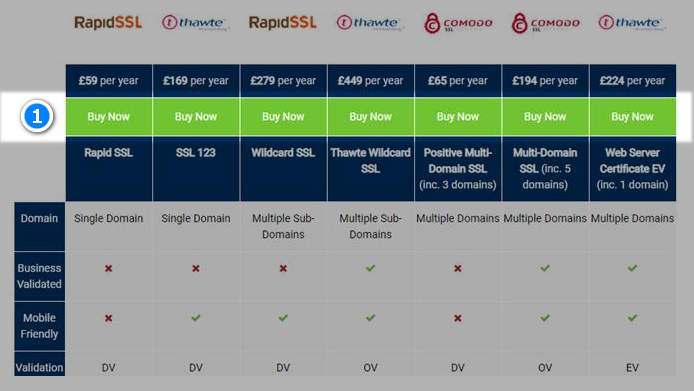
To order an SSL certificate with CWCS, please go to our website page - https://www.cwcs.co.uk/dedicated-server/ssl-certificates
- Click 'Buy Now' on the chosen SSL certificate
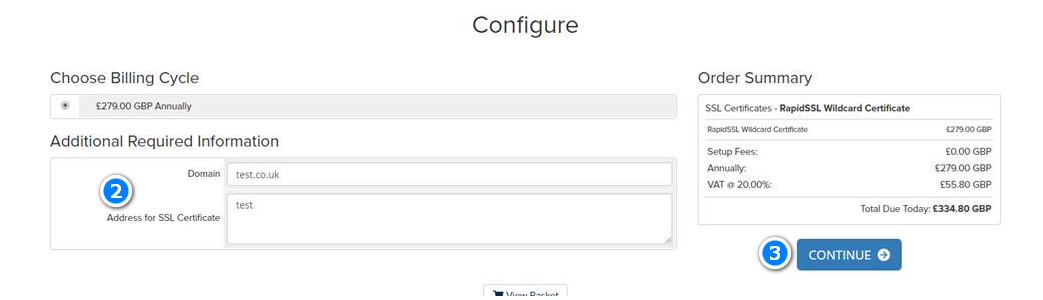
- Input the domain and address details
- Select 'Continue'
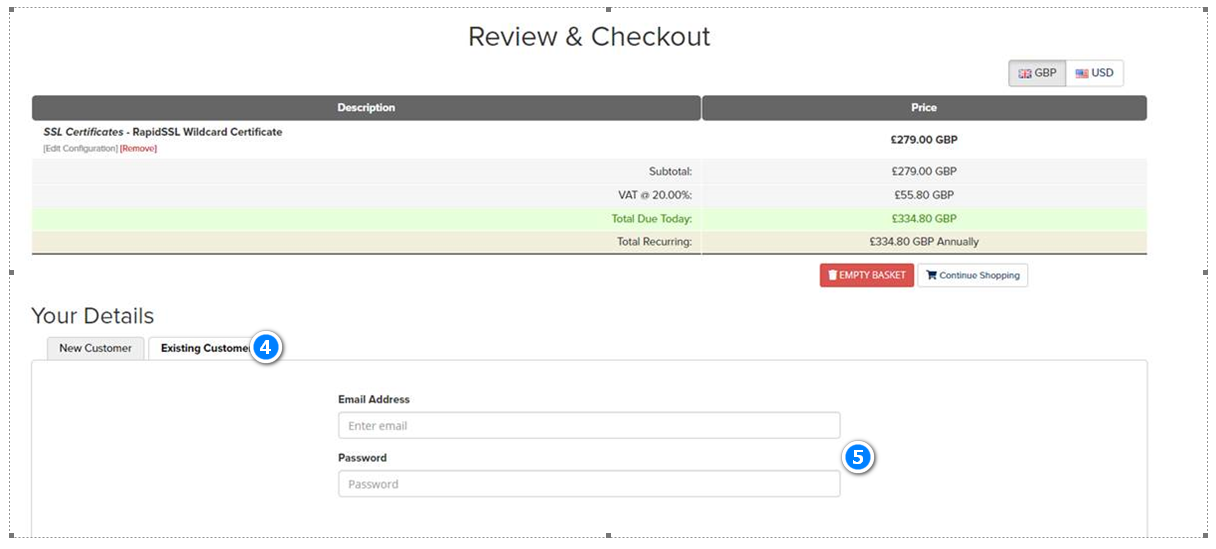
- Select existing customer tab
- Enter your email address and password to log in, and follow instructions for payment
- Once payment is processed you will receive an order confirmation via email.
- You will then receive an email to initiate the order, this is titled “CWCS: Your SSL Certificate – Enrolment steps”
- Using the link on the email you can go directly to the SSL configuration page, alternatively you can:
- Login to your account
- Click "Services"
- Select the SSL certificate from the list of services.
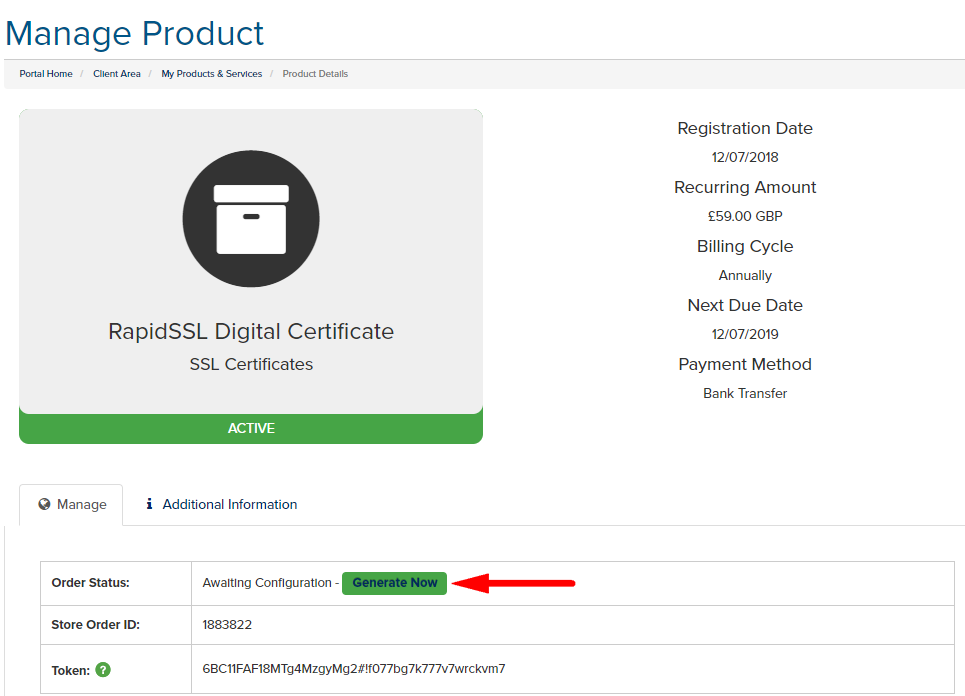
Then click Generate Now
The “Configure SSL Certificate Page” will be available.
Select the relevant web server from the drop down list.
Paste in the CSR for your certificate.
Select SHA encryption level (SHA2).
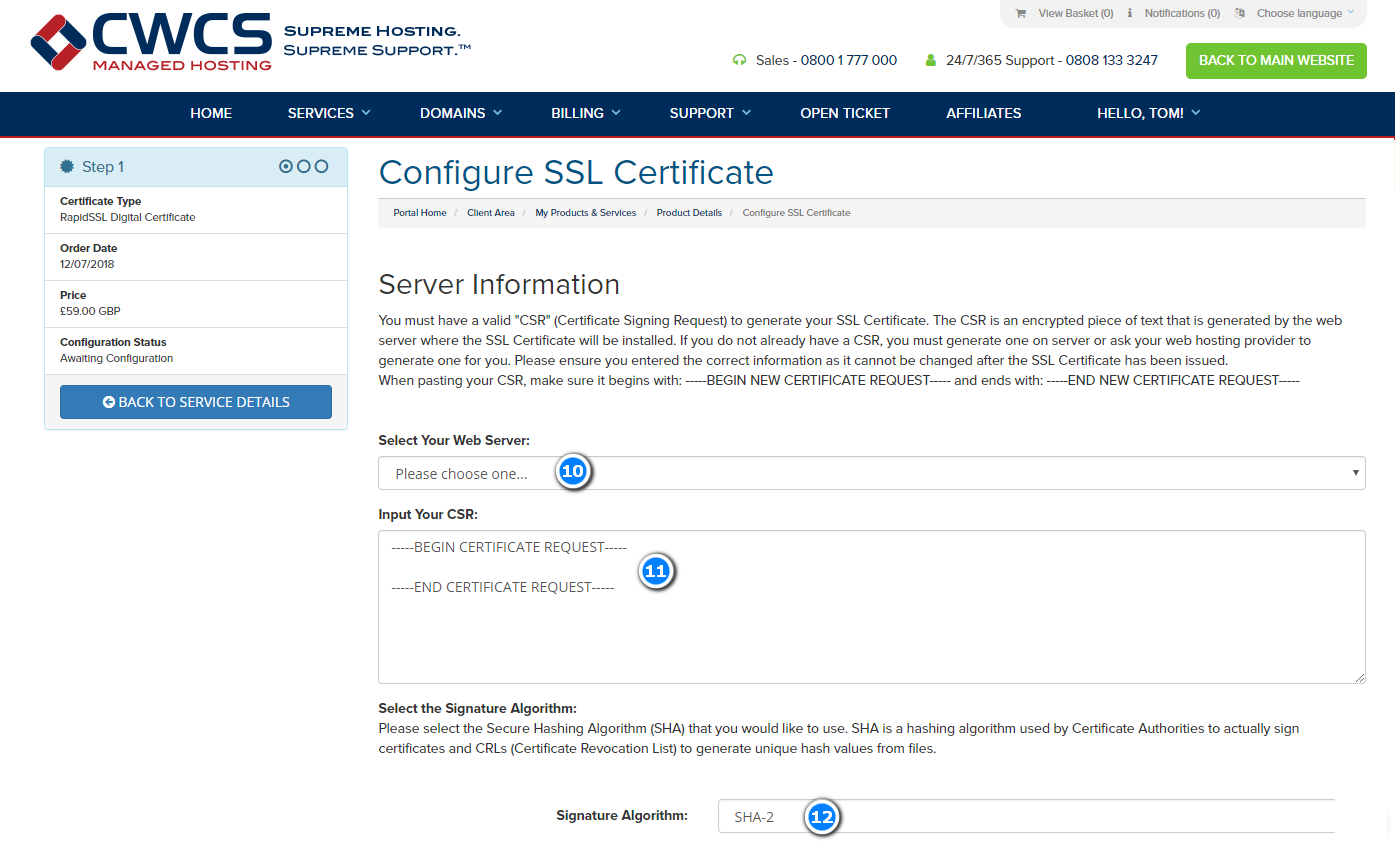
Not captured in the above image, you will be prompted to enter the Technical and Administrative Contact details for the SSL.
Select the method of authentication.
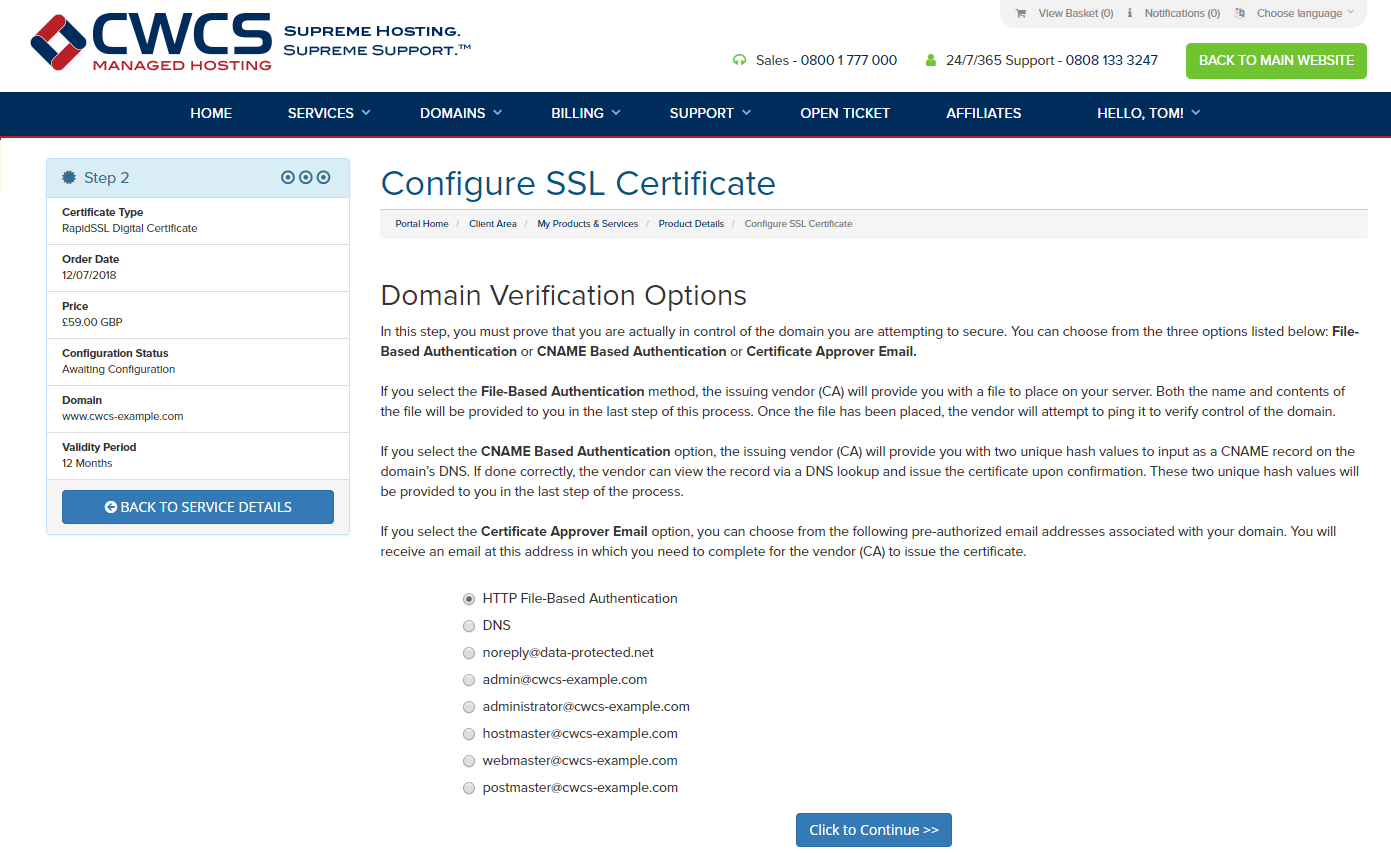
- HTTP File-Based Authentication – Requires uploading a certificate to the website
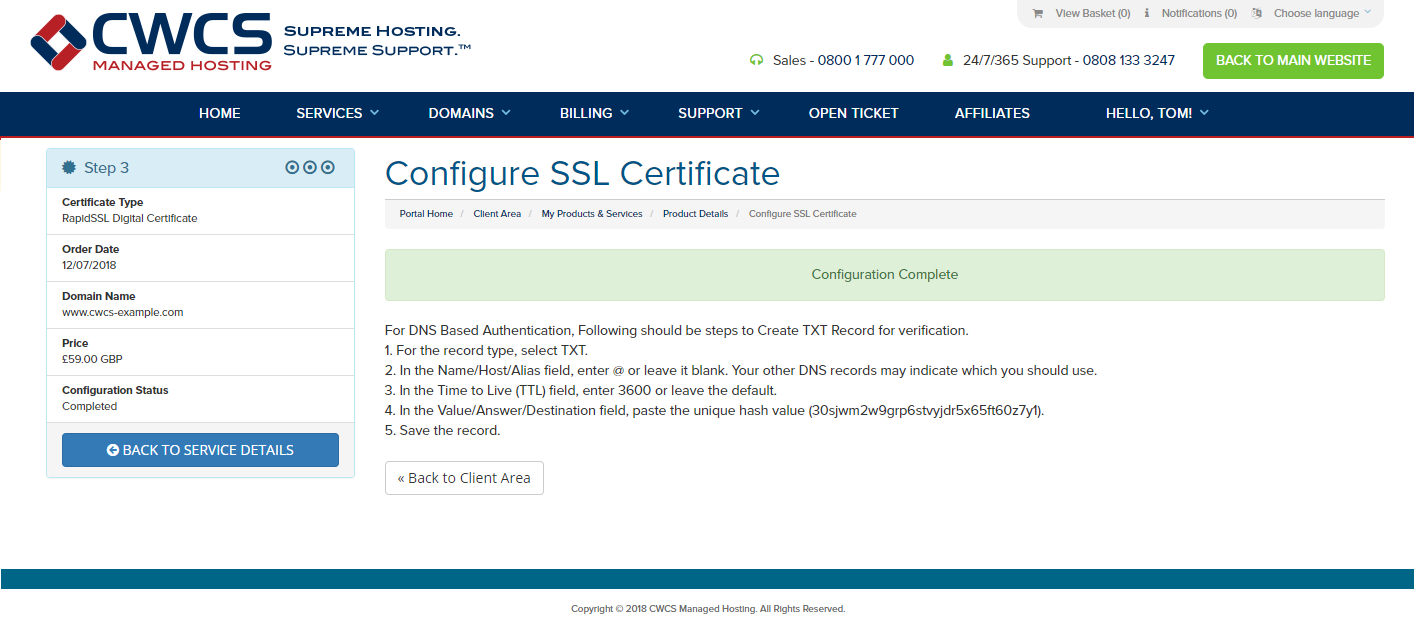
- DNS – Requires entering in a custom DNS record to authenticate against
- Email – Send an email to any of the available address to provide authentication
- For this process we will select DNS.
Note: You can use email or HTTP File-Based Authentication if you feel these are more suitable, if you select these options follow the instructions provided on the page. You will be provided with a DNS entry to add to the domain name.
Do not enter the TXT record with brackets as shown in the above image e.g. "(30jw2ifaoasfd08923roijknsdcvkjsdvgpqasf)", instead enter it as "30jw2ifaoasfd08923roijknsdcvkjsdvgpqasf"
Once the DNS entry has been added the certificate will take some time to validate. This process can take 24/48 hours depending on propagation time for the new DNS record.
Returning to the SSL Certificate Manage Product page further information about the SSL Order is available.